How to Spot Misinformation Online: 5 Steps from Buhii.net
A simple five-step routine for checking claims, sources and images before you believe or share them.
A beginner's guide to strong passwords and password managers: how to create passphrases, pick a manager, set it up safely, and add MFA and passkeys.
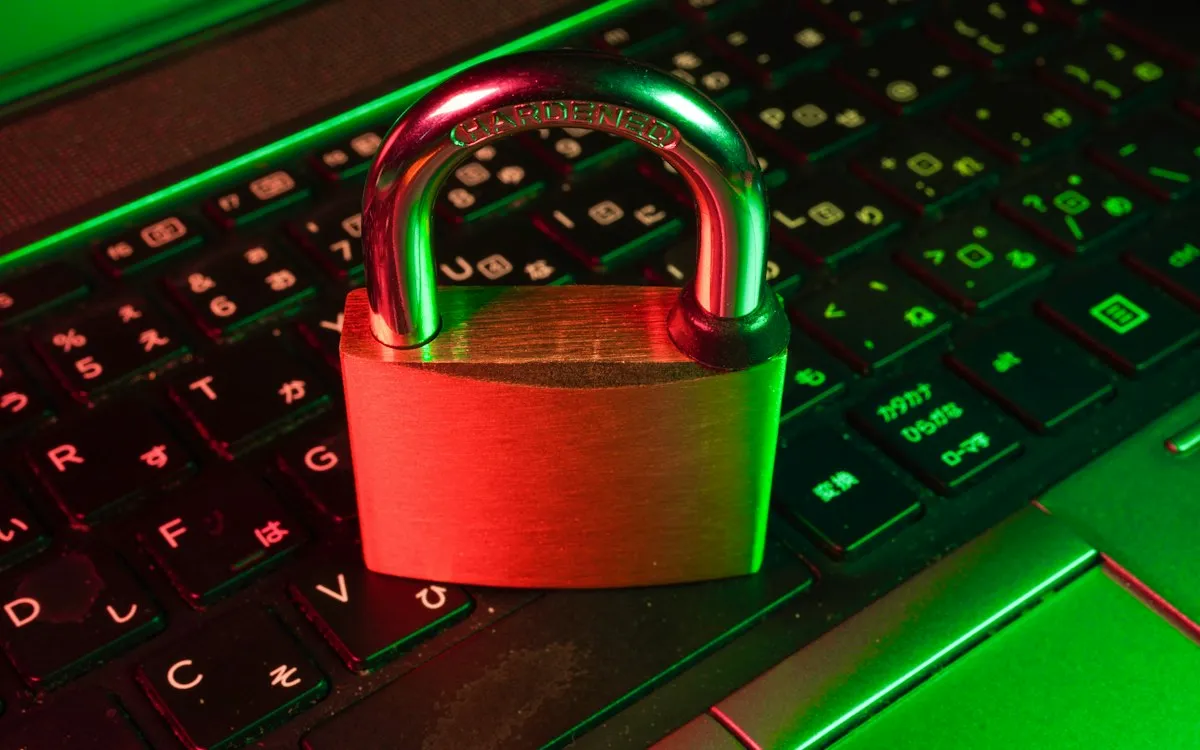
Most people know their passwords could be better, but the fix feels like a chore: invent dozens of complicated strings, then somehow remember them all. The good news is that strong passwords and a password manager solve that problem together, and the setup takes an afternoon rather than a weekend. This beginner’s guide from Buhii.net covers what makes a password strong today, how password managers work, and how to move your accounts over without locking yourself out.
In this beginner’s guide, the Buhii.net team explains what makes a password strong, how password managers work and how to set one up safely, one step at a time.
Password advice has changed. The old rules about swapping letters for symbols and mixing character types have given way to three simpler principles: long, random and unique.
The Cybersecurity and Infrastructure Security Agency’s guide to using strong passwords recommends:
The National Institute of Standards and Technology points the same way. Its digital identity guidelines (SP 800-63B) tell services to require at least 15 characters for passwords used on their own, to allow passwords of at least 64 characters, and to stop imposing composition rules such as mandatory symbols. Length does more work than complexity.
Here’s how common habits compare:
| Weak pattern | Why it fails | Stronger approach |
|---|---|---|
| A word plus a year and a symbol | Predictable structures are among the first things cracking tools try | A generated random password |
| A pet’s name or birthday | Easy to find on social media | Random words with no personal link |
| Letter swaps like “P@ssw0rd” | Common substitutions are well known to attackers | Length instead of substitutions |
| One password everywhere | A single breach exposes every account | A unique password per site |
| Short but complex | Short passwords are faster to guess, whatever the characters | 16 or more characters |
A strong password stops being strong the moment it’s reused. When a website is breached, email addresses and passwords often end up published or sold. Attackers then feed those pairs into automated tools that try them on email providers, banks and shopping sites, a technique known as credential stuffing. If you used the same password elsewhere, the breach of one small forum can become the breach of your email.
You can check whether your email address appears in known breaches with Have I Been Pwned. If it does, change the password for that site and anywhere else you reused it. Many password managers run this kind of check for you automatically.
A password manager is an encrypted vault for your logins. You remember one strong master password, and the manager handles the rest.
Autofill also has a quiet security benefit. Managers match saved logins to the exact website address, so if your manager doesn’t offer to fill in a password on a login page you expected it to recognize, stop and check the URL. You may be on a look-alike phishing site.
Your browser and phone likely include a manager already: Google Password Manager in Chrome and Android, the Passwords app on Apple devices, and built-in managers in Microsoft Edge and Firefox. These work well if you stay within one ecosystem. Dedicated password managers work across all browsers and operating systems and usually add features like secure sharing, emergency access and detailed security reports.
Use this checklist when comparing options, and read independent reviews from sources you trust:
Tip: You don’t have to fix everything at once. Each time you log in to a site over the next few weeks, let the manager generate a new password and save it. Your vault improves as you go.
Even a perfect password can be phished. Multi-factor authentication means a stolen password alone isn’t enough to get in.
From strongest to weakest, common options are:
Passkeys deserve special mention. Instead of a password, your device holds a cryptographic key and you confirm it’s you with your fingerprint, face or PIN. There’s nothing to reuse and nothing to type into a fake site. Many major services now support them, and most password managers can store and sync them. Strong logins are one part of a broader online privacy checklist that also covers tracking, app permissions and what you share publicly.
Strong passwords used to mean memorizing unpronounceable strings. Now they mean letting a password manager do the remembering while you protect one excellent master passphrase and turn on multi-factor authentication. Set it up in an afternoon, secure your email and bank first, and let the rest improve as you log in over the following weeks.
For more practical security and device advice, browse our technology and digital life guides, or return to Buhii.net to explore the rest of the site.
Reputable password managers encrypt your vault on your own device using a key derived from your master password, so stolen vault data is very hard to use without it. A long, unique master password and multi-factor authentication on the account are what keep that protection strong.
For many people, yes. Built-in managers from Google, Apple, Microsoft and Mozilla can generate and sync strong passwords and are far safer than reusing passwords. Dedicated managers add extras such as cross-browser support, secure sharing and more detailed security reports.
Not on a fixed schedule. Current NIST guidance says services should not force periodic password changes, but you should change a password right away if it may have been exposed in a breach or reused on another site.
 Technology
A simple five-step routine for checking claims, sources and images before you believe or share them.
 Technology
A step-by-step checklist to secure your accounts, reduce tracking, and control what you share online.
 Technology
How feeds decide what to show you, which signals matter most, and how to reshape your own feed.