How to Spot Misinformation Online: 5 Steps from Buhii.net
A simple five-step routine for checking claims, sources and images before you believe or share them.
Learn how to speed up a slow laptop with 10 practical fixes for Windows and Mac, from trimming startup apps and freeing storage to updates and upgrades.
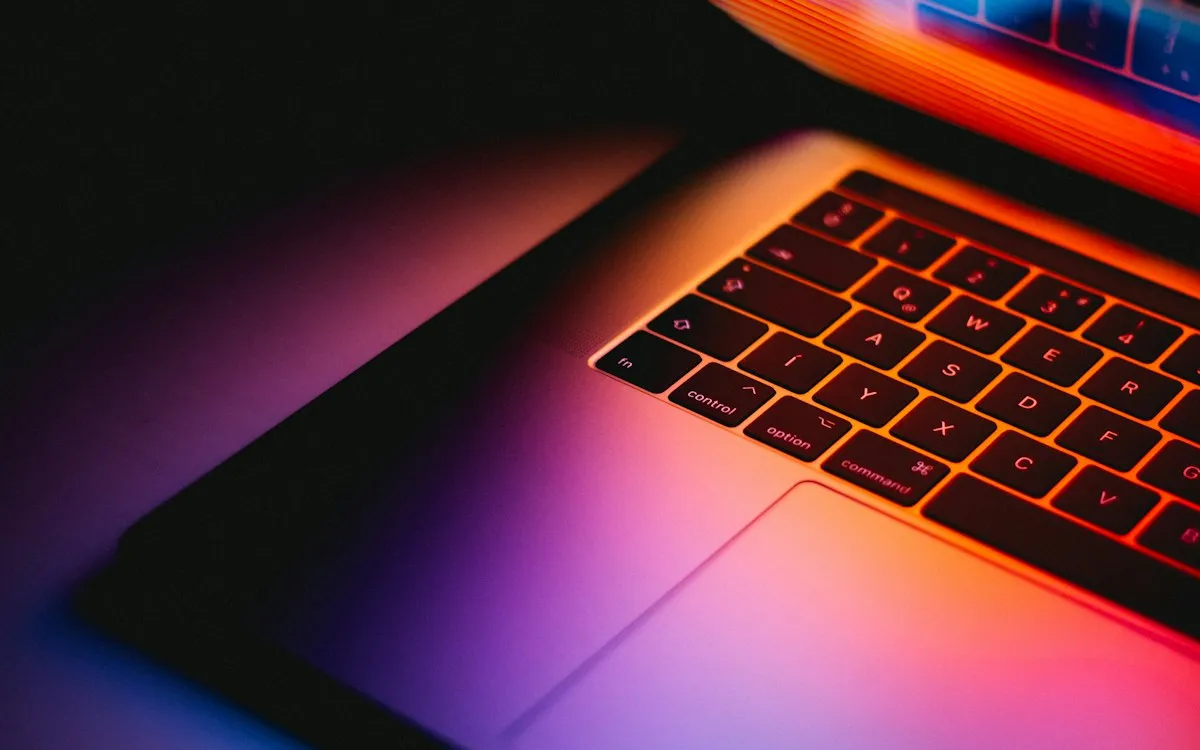
A slow laptop is frustrating, but it’s rarely a mystery. Most slowdowns come from a handful of fixable causes: too many programs launching at startup, a nearly full drive, outdated software, or background processes hogging memory. This guide from Buhii.net covers 10 ways to speed up a slow laptop, ordered from quick and free to hardware upgrades, with steps for both Windows and Mac.
The Buhii.net team gathered the fixes below from official Windows and Mac support guidance and ordered them from quickest to most involved.
Before changing anything, spend two minutes looking at what your laptop is actually doing. Guessing wastes time.
Match what you see to the likely fix:
| Symptom | Likely cause | Start with fix |
|---|---|---|
| Slow to boot, fine afterward | Too many startup apps | 2 |
| Slows down over the day | Background apps, browser tabs | 1, 4 |
| Everything lags, drive almost full | Low storage | 3 |
| Fans loud, performance drops under load | Heat or power settings | 8 |
| Pop-ups, unknown programs, high CPU at idle | Malware or unwanted software | 6 |
| Slow despite all of the above | Aging hard drive or too little RAM | 10 |
Many people close the lid for weeks at a time. Over time, memory fills with leftover processes and apps that never fully quit. A restart clears them. On Windows, choose Restart rather than Shut down, because the Fast Startup feature means a normal shutdown doesn’t fully reset the system. Microsoft’s own list of tips to improve PC performance in Windows includes closing unused apps and restarting when performance drops.
Chat apps, cloud sync tools, game launchers and updaters often set themselves to launch every time you sign in.
You can still open these apps whenever you want. They just won’t slow down every boot.
A nearly full drive leaves little room for temporary files, updates and the virtual memory your system relies on when RAM runs short.
Also empty the Downloads folder, remove old installers, and move large photo and video libraries to an external drive or cloud storage.
For many people, the browser is the heaviest app on the machine. Each open tab and extension uses memory.
Operating system updates often include performance and stability fixes as well as security patches. CISA’s guidance to update your software recommends turning on automatic updates wherever possible.
Malware, adware and aggressive “optimizer” programs can quietly consume resources. On Windows, open Windows Security, select Virus & threat protection, and run a scan. On both platforms, look through your installed apps for anything you don’t remember installing, especially toolbars, fake antivirus products and system cleaners, and remove them. Unused and unfamiliar apps are also a privacy risk, which our online privacy checklist explains in more detail.
New laptops often ship with trial software and manufacturer extras, and the rest of us accumulate apps over the years. Many run background services or updaters even when you never open them.
Laptops deliberately slow down to save battery or when they get too hot.
Animations, transparency effects and constant file syncing all use resources.
If Task Manager shows your drive is an HDD, replacing it with a solid-state drive is usually the single biggest improvement you can make to an older laptop. Adding RAM helps if you constantly run out of memory with your normal workload.
Before buying anything, check your model’s specifications on the manufacturer’s website. Many thin laptops, and all Macs with Apple silicon, have memory soldered to the board, so it can’t be upgraded later.
Tip: Before any major change, back up your files. If you’re planning a reset or reinstall, make sure your logins are saved in a password manager so you don’t get locked out of accounts afterward.
When a laptop is still slow after all ten fixes, a clean start can clear years of accumulated clutter. Windows offers Reset this PC under Settings > System > Recovery, with an option to keep your personal files. On a Mac, you can reinstall macOS from macOS Recovery. Back up first either way, and reinstall only the apps you actually use.
| Task | How often |
|---|---|
| Restart the laptop | Weekly |
| Install operating system and app updates | As soon as they’re offered |
| Close unused tabs and review extensions | Weekly |
| Clear Downloads and temporary files | Monthly |
| Review startup apps and installed programs | Every few months |
| Clean vents and check for dust | Once or twice a year |
Most slow laptops don’t need replacing. They need a restart, fewer startup apps, more free storage and up-to-date software. Work through the fixes in order, check Task Manager or Activity Monitor after each one, and stop when your laptop feels responsive again. If the fixes run out, an SSD or memory upgrade can give an older machine a real second life.
For more hands-on help with your devices, browse our technology and digital life guides, or visit Buhii.net for more practical reads.
Usually not, and some bundle adware or push paid upgrades. Windows and macOS already include the tools most people need, such as Storage Sense, Task Manager and Activity Monitor, and Microsoft offers its own free PC Manager app for Windows.
Replacement makes more sense when the laptop no longer receives operating system security updates, when its memory and storage are soldered in and too small for your work, or when repair costs approach the price of a new machine.
No. Staying plugged in does not reduce speed, and many laptops only run at full performance on AC power. Battery wear is a separate issue, and many manufacturers include battery-care settings that limit charging to extend battery life.
 Technology
A simple five-step routine for checking claims, sources and images before you believe or share them.
 Technology
A step-by-step checklist to secure your accounts, reduce tracking, and control what you share online.
 Technology
How feeds decide what to show you, which signals matter most, and how to reshape your own feed.